 Fast TV
FAST TV GUIDE
Add external subtitles to a local video on Google TV

Add an SRT or WebVTT subtitle file to the video in Fast TV, then choose it from the TV’s CC control. Fast TV also finds subtitle files beside the video or in a Subs or Subtitles folder within the movie folder.
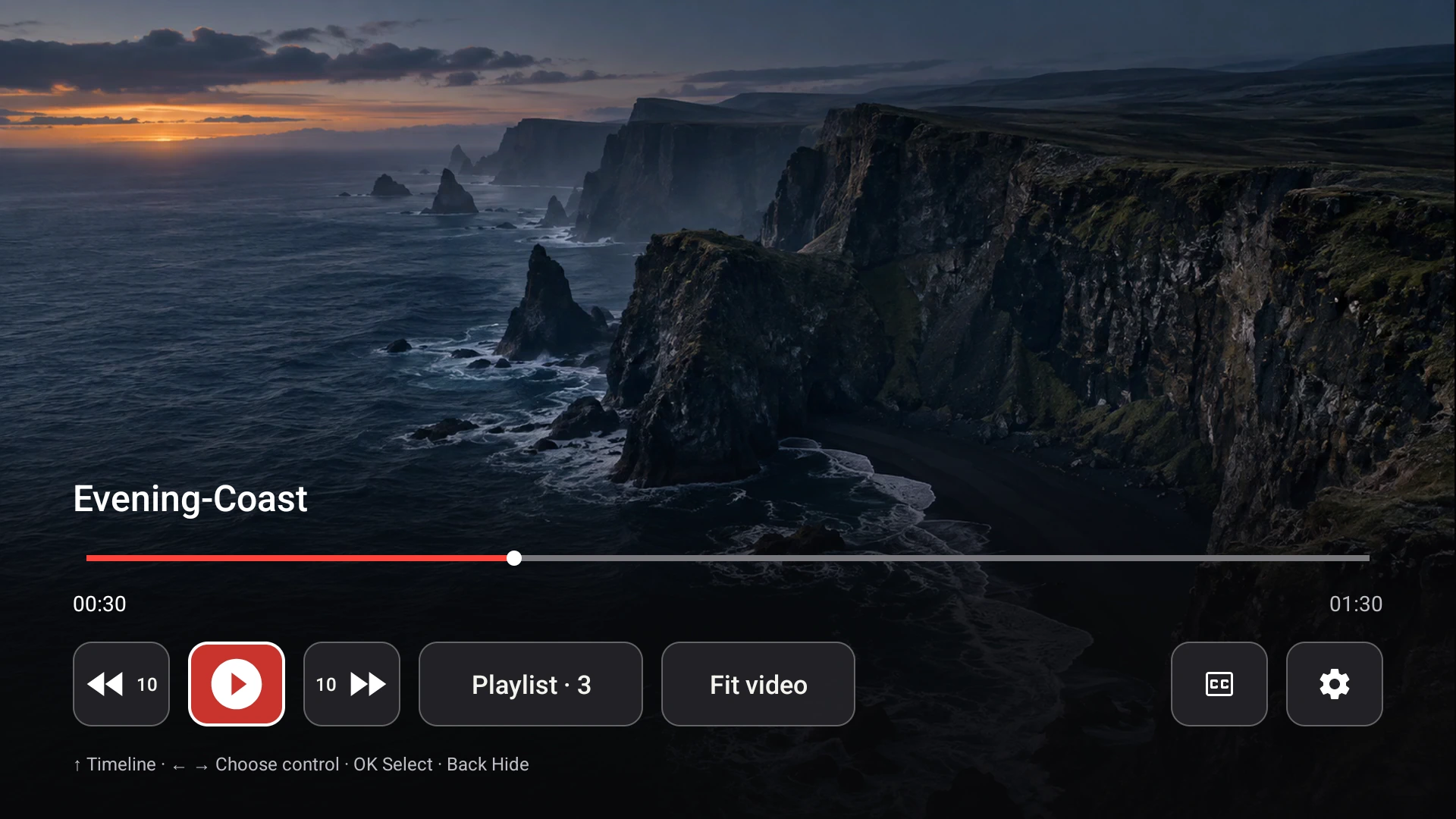
The CC control on the Google TV receiver opens the subtitle choices for the current video.
External and embedded subtitles
External subtitles are separate text files, usually .srt or .vtt, that sit next to the video. Embedded subtitles live inside the video container. Fast TV works with external SRT and WebVTT files, and that is what this guide covers. Image-based formats such as PGS, styled ASS or SSA files, and subtitle downloads are not supported.
Where to put the subtitle file
Fast TV looks in the movie’s own folder and in a subfolder named Subs or Subtitles. The subtitle filename does not need to match the video. A folder like this works:
- Holiday.mp4
- Holiday.srt
- Subs/holiday-french.vtt
Select the video in the Mac app and the Subtitles section lists every file it found. If you add a file in Finder while the app is open, click Refresh subtitles from video folder.
Add a file from somewhere else
Click Choose file… in the Subtitles section. The dialog opens on the movie’s folder, and you can pick any SRT or WebVTT file. Fast TV stores a reference to the file; it does not copy it. A video can have up to 64 subtitle files.
Choose subtitles on the Mac or the TV
On the Mac, pick a track in the Subtitles section or choose Off. On the Fast TV receiver, press OK to show the controls, move to CC and pick any available track or turn subtitles off. The choice synchronizes between the Mac and the TV without restarting playback.
With Google Cast instead of the receiver, the selected subtitle is sent when playback starts. Cast receivers cannot switch captions mid-play, so choose the track on the Mac and reconnect if you change it.
When the text is missing, wrong or out of time
- No subtitle listed: check that the file ends in .srt or .vtt and sits in the movie folder, Subs or Subtitles. Then refresh.
- Subtitle rejected: the file must be a non-empty UTF-8 or UTF-16 text file smaller than 4 MiB with readable cues. Re-save it as UTF-8 text and add it again.
- Wrong language: the file you picked is simply the wrong one. Pick another track; filenames are shown as they are on disk.
- Lines appear too early or late: the timing inside the subtitle file does not match this cut of the video. Fast TV does not shift or repair timing; use a subtitle edited for your version of the file.
Questions
Can Fast TV use subtitles embedded in an MKV?
No. Fast TV lists external SRT and WebVTT files. If your MKV has an embedded track you want to use, export it to an SRT file with a subtitle tool and place it beside the video.
Do subtitles need the same filename as the video?
No. Fast TV lists every SRT and WebVTT file in the movie folder and its Subs or Subtitles subfolder, whatever the name.
Can I change the subtitle font or size?
Not in Fast TV. The receiver renders subtitles with the TV’s standard caption style.
Related guides
Free to download. A one-time US$19.99 licence streams from up to two Macs. Apple silicon with macOS 13 or later, and a Google TV or Android TV on the same local network.