 Fast TV
FAST TV GUIDE
Watch a local video from your Mac on Google TV
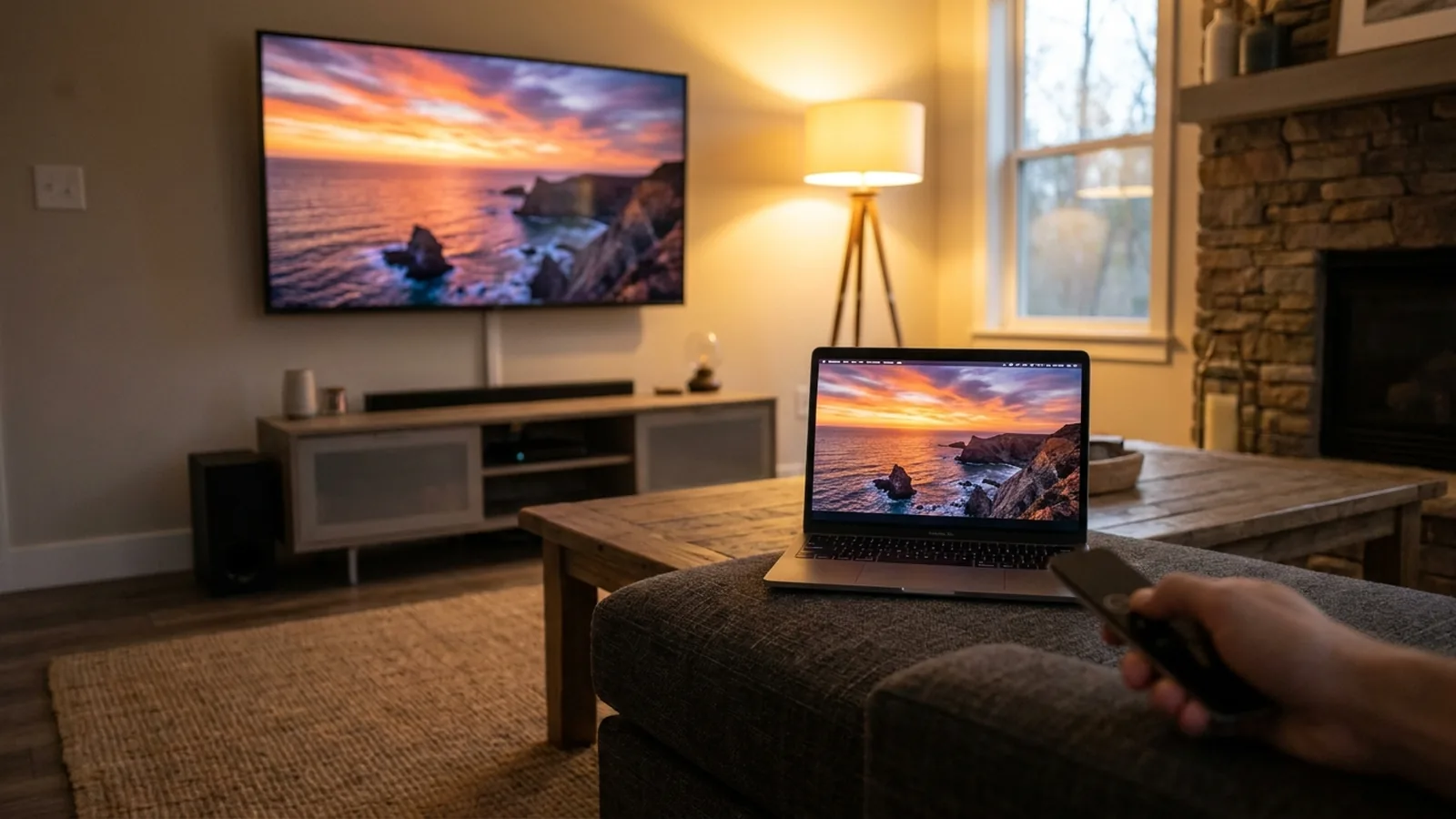
To watch a video from your Mac on Google TV, open Fast TV on both devices, connect them to the same local network, add the video on your Mac and choose your TV. The file stays on your Mac while the TV plays it.
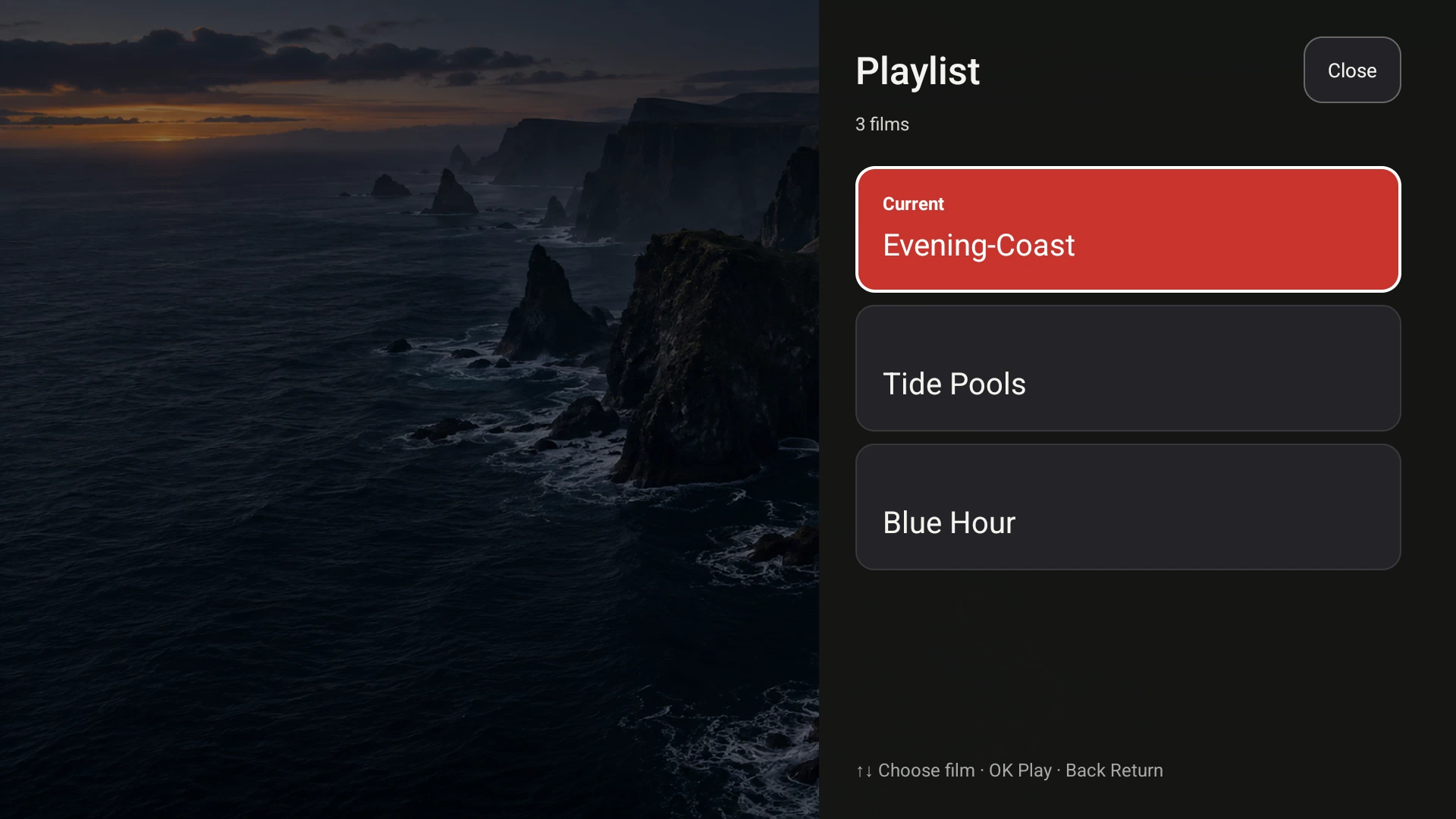
The Google TV receiver with a three-video playlist sent from the Mac. Demo videos shown.
What you need
- A Mac with Apple silicon running macOS 13 or later, with Fast TV installed.
- A Google TV or Android TV device running Android 7 or later, with the Fast TV receiver installed.
- Both devices on the same trusted home network. Guest networks and VPNs often keep them apart.
- A local video file you have permission to watch, such as an MP4 or MKV.
The Mac app is free to download. Streaming to the TV needs a one-time licence, which covers up to two Macs. Check the full requirements and file types.
Step 1: Open the receiver on your TV
Open Fast TV on the TV and leave it on its pairing screen. It shows a six-digit pairing code and waits for your Mac. Keep the receiver in the foreground while you set up the Mac side.
If your TV supports Google Cast, it can also appear in the Mac app without the receiver. Google Cast plays the playlist as a queue, while the Fast TV receiver adds the on-screen playlist browser, subtitle switching and the picture controls described in these guides.
Step 2: Add the video on your Mac
Open Fast TV on the Mac. Click Add videos, press ⌘O, or drag files from Finder into the playlist. Fast TV stores a reference to each file and never copies or moves the original.
You can add up to 200 files. Drag a row to change the order. If a video has an SRT or WebVTT subtitle file beside it, the Subtitles section below the video lists it automatically. See how subtitles work.
Step 3: Choose the TV and press Play on TV
Select your TV in the list. The Fast TV receiver appears as a Fast TV receiver entry; Google Cast TVs appear by their TV name. If the list is empty, click Refresh TVs or use Connect by IP with the address from the TV’s network settings. What to check when the TV does not appear.
Click Play on TV. For the receiver, enter the six-digit code shown on the TV. The TV starts playing the selected video from your Mac.
Step 4: Control playback from either screen
On the Mac you can play, pause, seek, skip 30 seconds, change the volume and move to the previous or next video. On the TV, press OK to show the controls. Left and Right move along the control row, Up focuses the timeline where Left and Right seek in 10-second steps, and Playlist opens the shared list so you can start another video with the remote.
Selection stays in sync. Start a different video on the TV and the Mac follows; reorder the playlist on the Mac and the TV shows the new order.
Keep the Mac available while you watch
The Mac supplies the video for the whole session, so keep it powered, connected and with its lid open. Fast TV keeps the Mac awake only while a video is playing, connecting or being prepared; while paused, the Mac can sleep normally. Closing the window keeps streaming. Click Stop or quit the app to end the session.
If a file has picture but no sound, or the TV reports that a movie could not play, the audio or video codec inside the file is the usual cause. MKV with no sound.
Using Chrome instead?
Chrome can cast a browser tab or a file to a Cast-enabled TV, and Google documents that workflow separately. Fast TV is a different approach: it keeps a playlist of local files on your Mac, pairs with the receiver and gives you the TV remote, subtitle and picture controls. The two do not need each other.
Questions
Does the TV download the video?
No. The TV streams the file from your Mac over the local network while you watch. Nothing is uploaded to Fast TV servers and the TV keeps no copy.
Can I watch something from a streaming subscription this way?
No. Fast TV plays your own video files. Downloads from subscription services are protected by DRM and cannot be played.
Do I need the receiver if my TV supports Google Cast?
Google Cast works with nothing installed on the TV and plays your playlist as a queue. The Fast TV receiver adds the playlist browser, subtitle switching and Fit or Crop to fill controls on the TV, and plays MP4 and MKV files directly.
Related guides
Free to download. A one-time US$19.99 licence streams from up to two Macs. Apple silicon with macOS 13 or later, and a Google TV or Android TV on the same local network.