 Fast TV
FAST TV GUIDE
Fit or fill the picture without stretching it
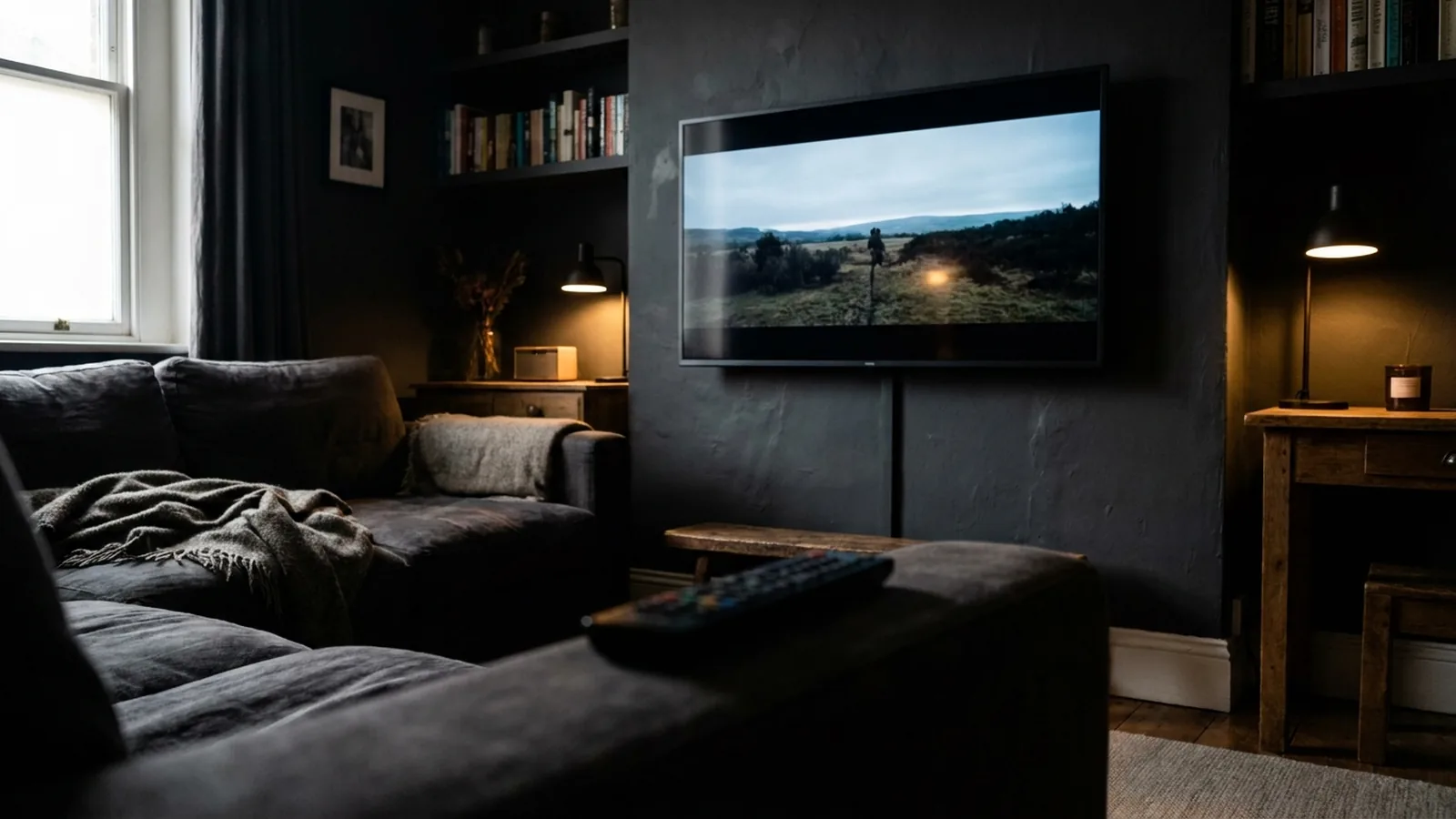
Use Fit video to show the whole video frame, including bars when its proportions differ from the TV. Use Crop to fill to cover the screen by cropping the edges. Both modes keep the picture’s proportions.
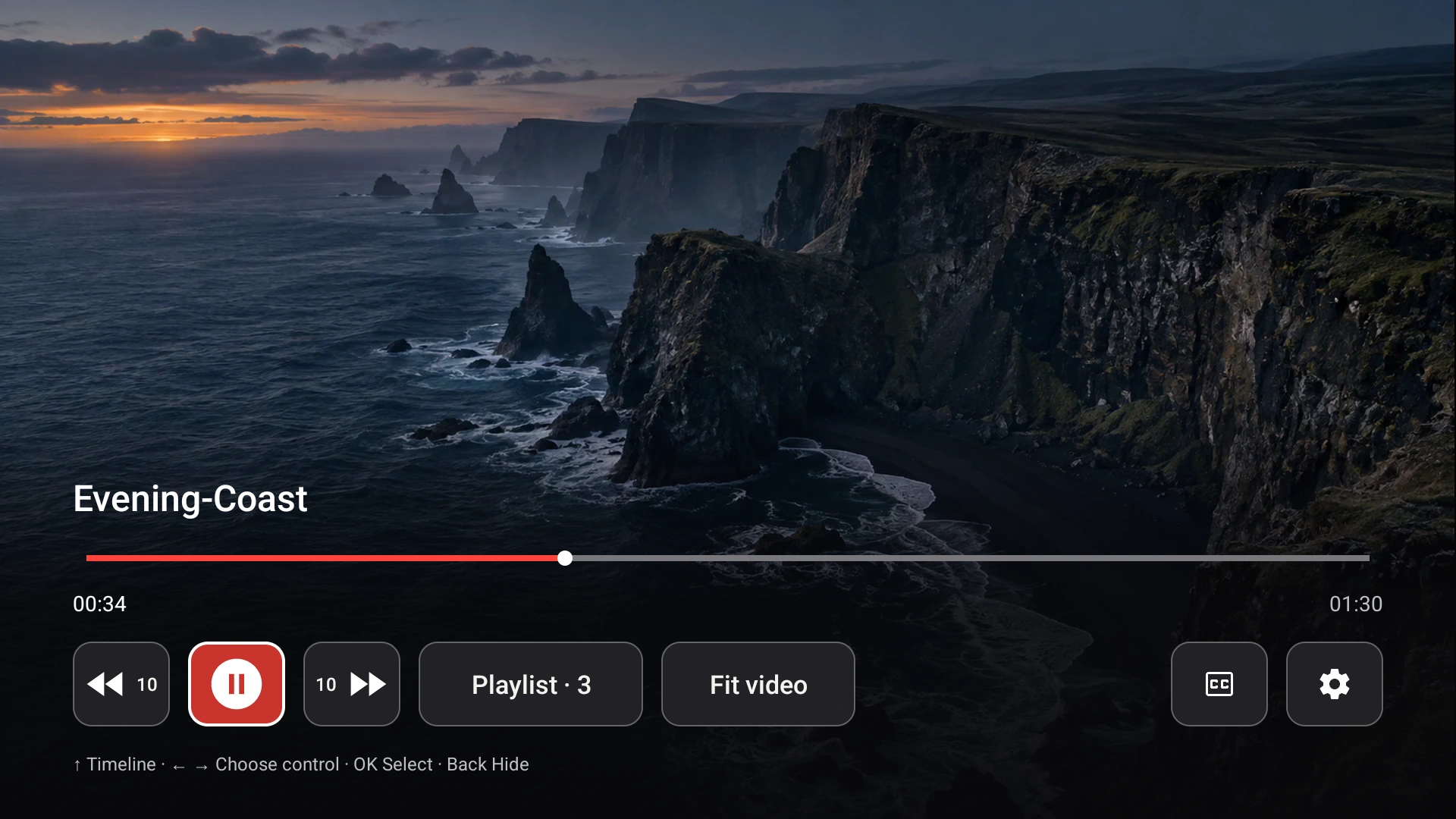
The picture control in the receiver’s control row toggles between Fit video and Crop to fill.
Why bars appear at all
Most TVs are 16:9. A phone video shot upright, a 4:3 recording or a very wide film does not share those proportions, so something has to give: either the TV shows the whole frame with empty bars, or it enlarges the picture until it covers the screen and loses the edges. Stretching the image to fit would distort faces and text, so Fast TV never does that.
Fit video
Fit video shows the entire picture. A tall phone video appears in the middle with black bars at the sides; a very wide film shows bars above and below. Nothing is cropped, which makes this the safer choice for subtitles burned into the picture, captions near the edges and anything where every pixel matters.
Crop to fill
Crop to fill enlarges the picture, keeping its proportions, until it covers the TV. The bars disappear and the edges of the frame fall outside the screen. For casual viewing of a slightly-off-ratio home video this looks more natural; for a film with subjects or text at the edges, check what you are losing.
Switch modes with the remote
On the Fast TV receiver, press OK to show the controls, move along the control row to the picture control, and press OK. It toggles between Fit video and Crop to fill, and the label shows the mode you can switch to. The setting applies to the video that is playing. The Mac app does not have this control; it belongs to the TV.
Bars that are part of the file
Some files already contain black bars inside the picture, for example a widescreen film encoded into a 16:9 frame. Those bars are pixels in the video, so Fit video shows them and Crop to fill cannot remove them cleanly. Fast TV does not detect or trim encoded bars; a video editor would have to re-encode the file.
When the TV’s own settings are involved
Some Google TV models have their own aspect ratio or zoom setting in the TV’s picture menu. If the picture looks wrong in both Fast TV modes, check that the TV is set to its normal or original ratio. Those menus vary by manufacturer and are separate from the Fast TV receiver.
Questions
Does Crop to fill change my video file?
No. Both modes only change how the TV displays the stream. Your file on the Mac is untouched.
Can I stretch a 4:3 video to fill the screen?
No. Fast TV keeps the original proportions in both modes to avoid a distorted picture.
Does the mode apply to subtitles?
External subtitles are drawn by the receiver on top of the picture in either mode. Subtitles burned into the video itself are part of the picture and can be cropped by Crop to fill.
Related guides
Free to download. A one-time US$19.99 license streams from up to two Macs. Apple silicon with macOS 13 or later, and a Google TV or Android TV on the same local network.