 Fast TV
FAST TV GUIDE
Build a local video playlist for your TV
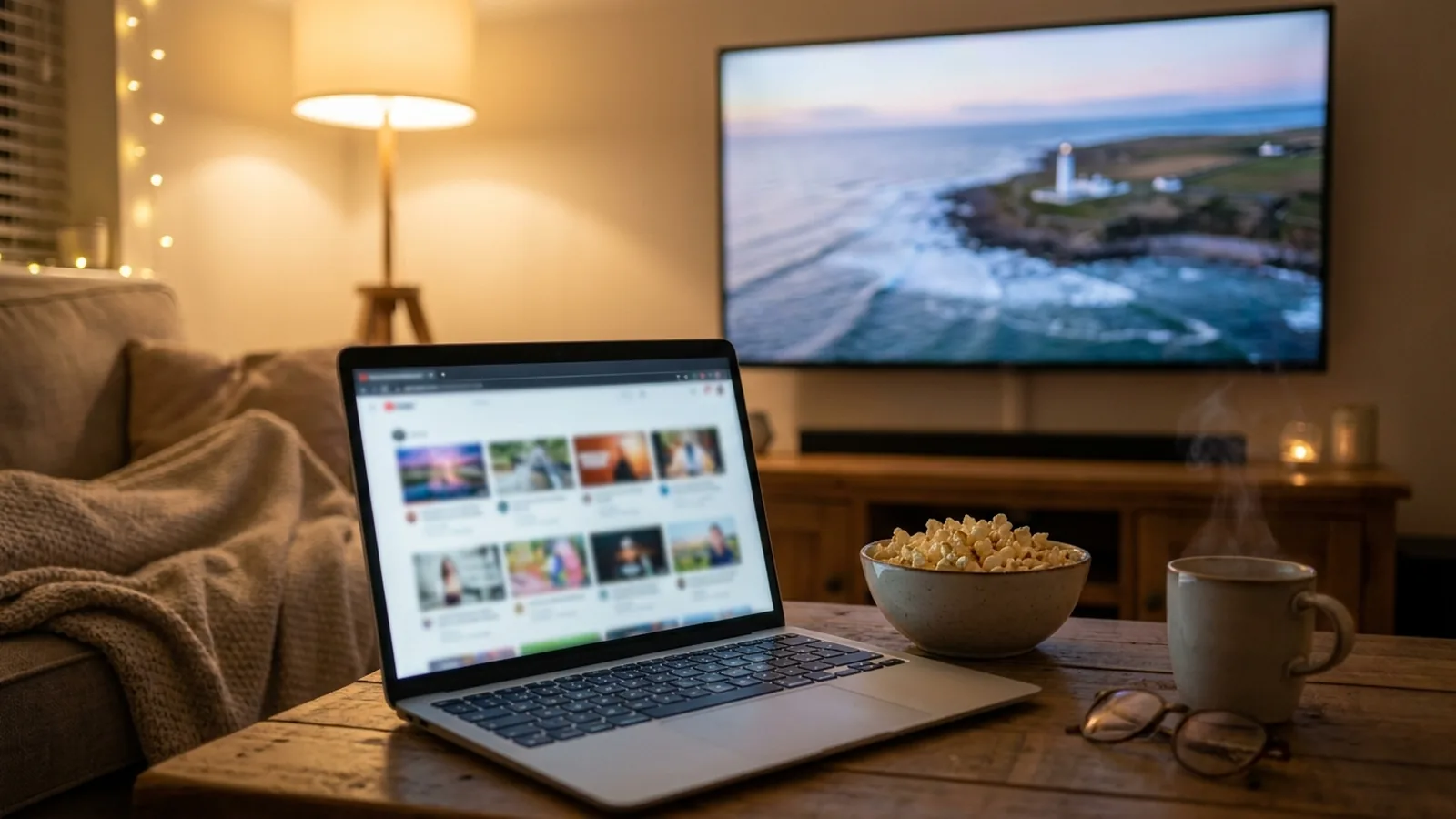
Build a playlist in Fast TV by adding videos from your Mac and arranging them in the order you want to watch. The playlist refers to those files, so keep them available on the Mac when you play the list on your TV.
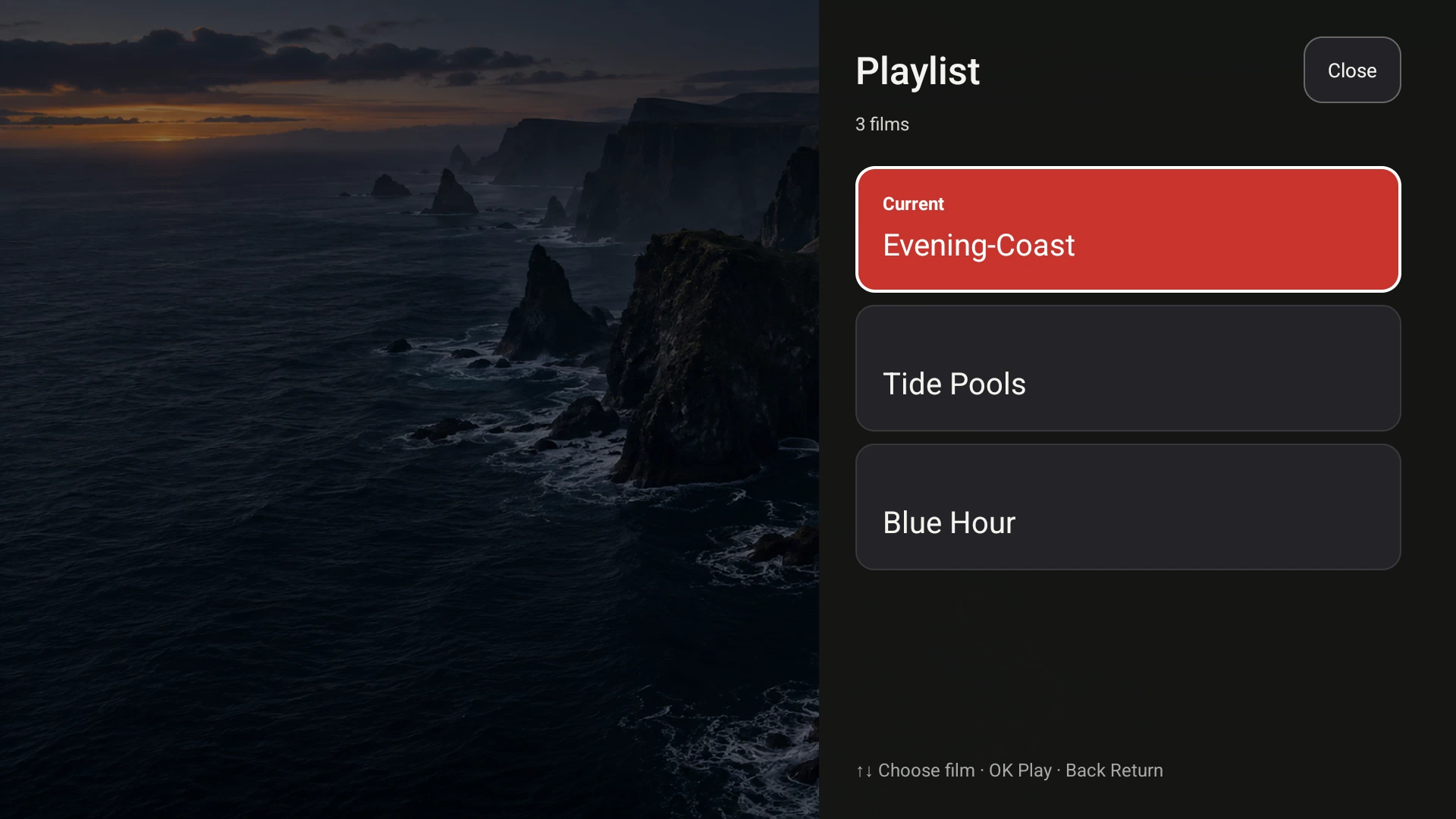
The shared playlist as the TV shows it. The current video is highlighted; Up and Down choose another one.
An evening of three videos
Say you have three home videos in a folder: Evening-Coast.mp4, Tide-Pools.mkv and Blue-Hour.mp4. Open Fast TV on the Mac and drag all three into the playlist, or click Add videos and select them together. Each row is named after its file. Repeated additions are ignored, and a playlist can hold up to 200 files.
Arrange the order
Drag a row to move it. A red line shows where it will land, and holding it near the edge of the list scrolls a long playlist. Press Escape or drop outside the list to cancel. The up and down arrows on each row work from the keyboard. Reordering while a video is playing does not interrupt it.
Play the list on the TV
Select the first video, choose your TV and click Play on TV. With Autoplay next turned on, Fast TV moves to the next video in playlist order when one ends, and stops after the last item; it does not loop. On the Fast TV receiver, press OK and choose Playlist, or press Menu, to browse the whole list with Up and Down and start any video with OK. Choosing the current video continues from where it is.
On the Mac, Previous video and Next video move through the list, and starting a different row switches the TV to it. Whichever screen you use, the other follows.
The playlist comes back
Fast TV saves the file references, their order and the selected row, and restores them when you reopen the app. It saves references only: your videos are not copied, moved or changed.
Moved files and external drives
If a file is renamed, moved or on a drive that is unplugged, its row shows File unavailable. Restore the file to its original location and select the row to retry, or remove the row and add the file from its new location.
Remove takes an item off the playlist; it never deletes the original. Removing the video that is currently playing stops the session, so remove it after switching to another video if you want to keep watching.
Subtitles in a playlist
Each video keeps its own subtitle choice. Put SRT or WebVTT files beside the videos that need them and pick a track per video on the Mac, or with CC on the TV. See the subtitle guide.
Questions
Can the playlist shuffle or repeat?
No. Fast TV plays in the order you set and, with Autoplay next on, stops after the last video. Choose any video from the TV’s playlist to keep going.
Can I save several playlists?
Fast TV keeps one playlist, the one you see in the app, and restores it when you reopen the app. Rearrange or replace its items for a different evening.
Does the TV keep a copy of the playlist?
No. The Mac sends the list to the TV for the session. If you reopen the receiver, start playback from the Mac again and the list reappears.
Related guides
Free to download. A one-time US$19.99 licence streams from up to two Macs. Apple silicon with macOS 13 or later, and a Google TV or Android TV on the same local network.