 Fast TV
FAST TV GUIDE
Cast a local video from your Mac to a Google Cast TV
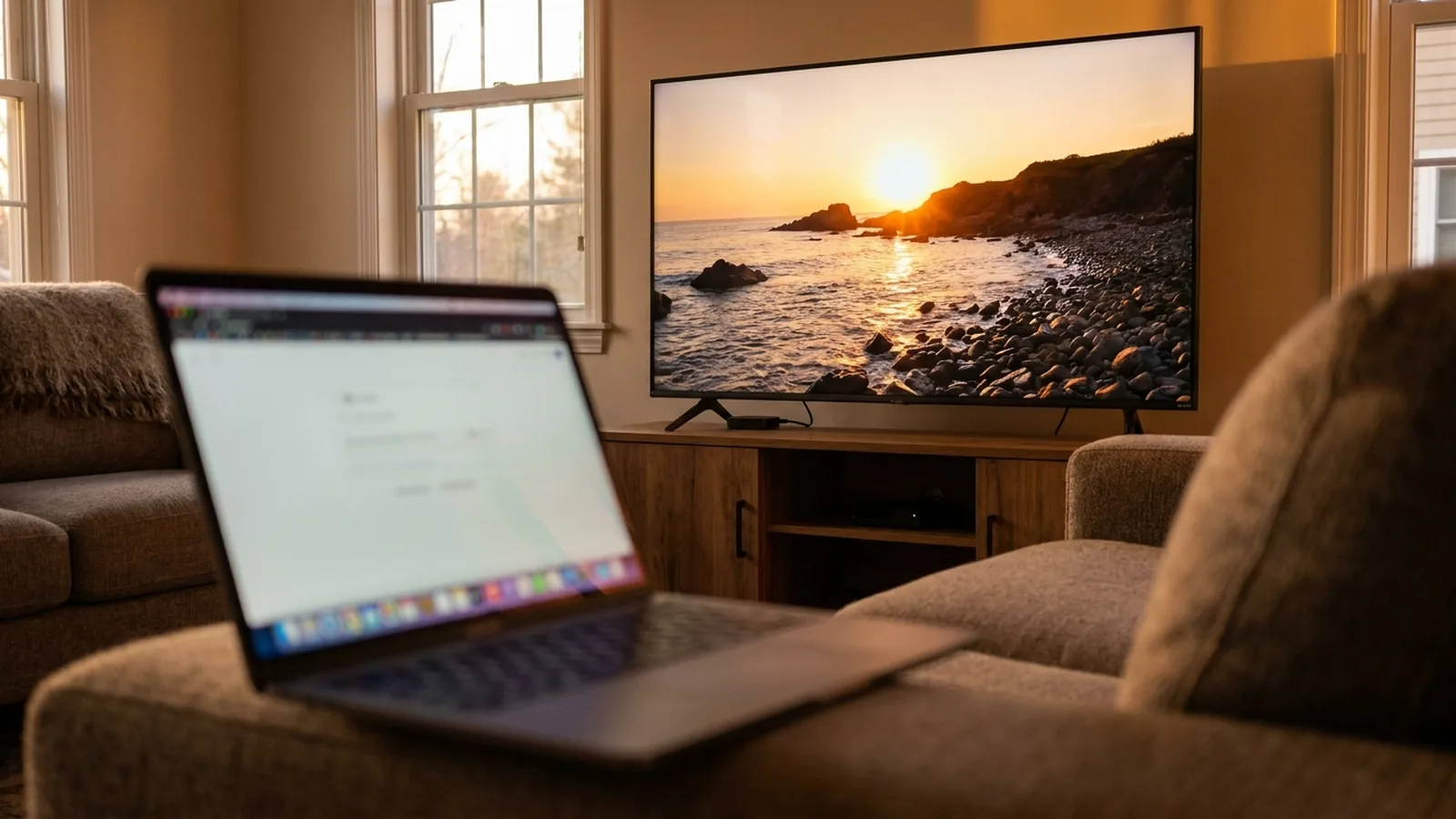
To cast a video file from your Mac to a Chromecast or Google Cast TV, open Fast TV on the Mac, add the file, choose the TV from the list and click Play on TV. Nothing needs to be installed on the TV. The file streams from your Mac over the local network.
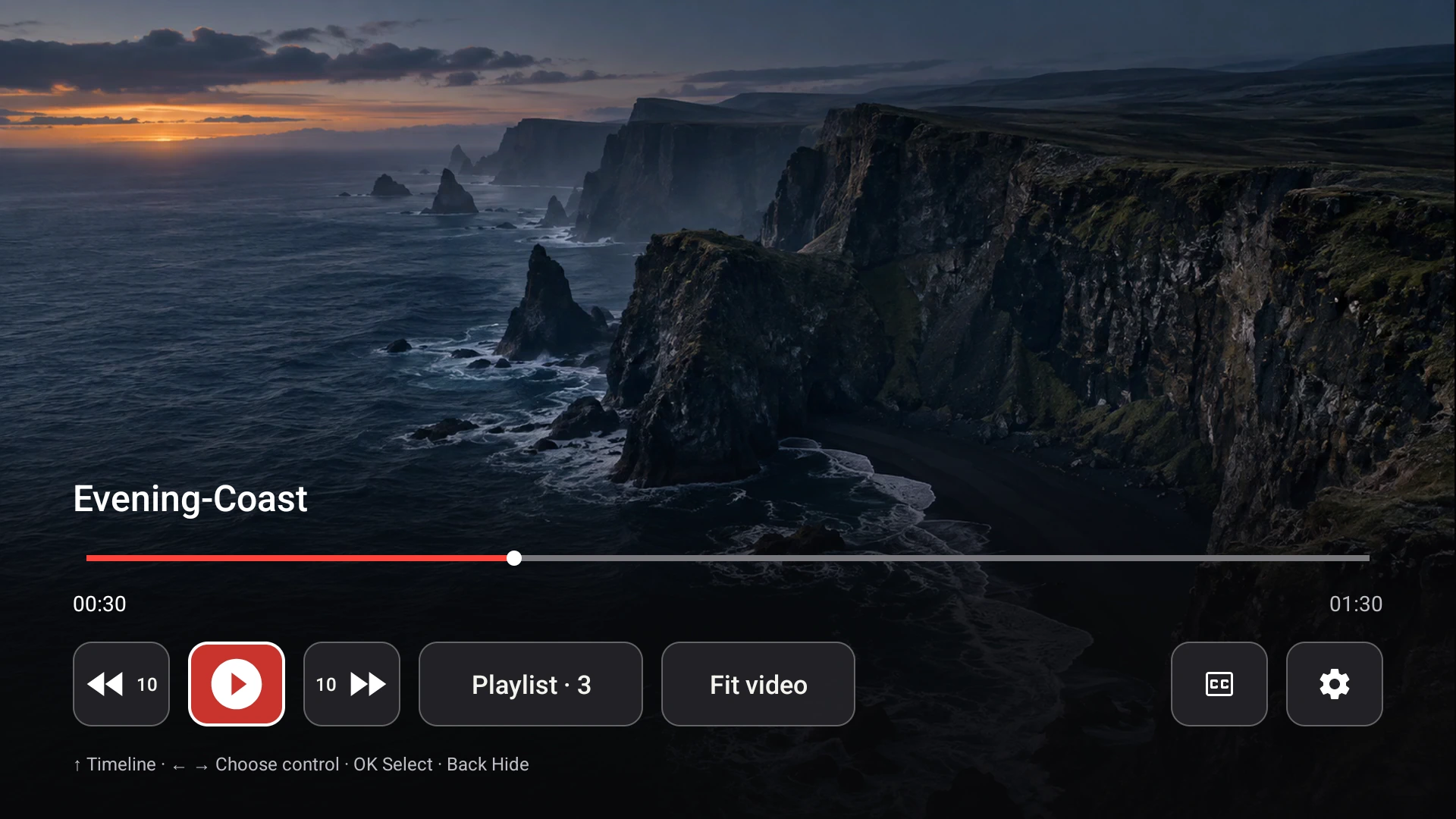
Shown: the Fast TV receiver. A Google Cast TV plays the same file through its built-in Cast player, with the TV’s standard controls.
Two ways to reach the same TV
Most Google TV and Android TV devices have Google Cast built in. Fast TV can use it directly, or it can talk to the Fast TV receiver app on the TV. Both appear in the same TV list on the Mac; the receiver shows as a Fast TV receiver entry, and a Cast TV shows under its own name. If both are available for one TV, the Connection type control lets you choose Google Cast or the Fast TV receiver.
Google Cast is the quickest start. The Fast TV receiver adds the on-screen playlist browser, subtitle switching from the remote, Fit video and Crop to fill, and direct MP4 and MKV playback. Set up the receiver when you want those.
Cast in three steps
- Open Fast TV on the Mac and add your video with Add videos or by dragging it in.
- Choose the TV in the list. If it is missing, click Refresh TVs; a Cast TV must be awake and on the same Wi-Fi as the Mac.
- Click Play on TV. No pairing code is needed for Google Cast.
The Mac sends the playlist as a Cast queue, so the TV’s own media controls can move to the previous or next video. Play, pause, seek and volume work from the Mac as usual.
What happens to the file
For Google Cast, Fast TV prepares a temporary compatible MP4 on your Mac before playback starts. H.264 or HEVC video is copied without re-encoding; audio the Cast player cannot decode becomes AAC stereo. Preparation shows progress and can be cancelled with Stop. Temporary files use up to 10 GiB per session and are removed when you stop, disconnect or quit. Your original file is never changed.
Video with another codec is not converted. If the Mac reports that a file needs a video conversion it does not support, use an H.264 or HEVC version of the video. More on sound and codecs.
Subtitles with Google Cast
Choose the SRT or WebVTT track on the Mac before you press Play on TV. The Cast player receives the selected subtitle when playback starts, and it cannot switch captions mid-play. If you pick a different track later, Fast TV asks you to reconnect to use it. The Fast TV receiver, by contrast, switches subtitles live from the Mac or the CC control. How subtitles work.
Chrome’s Cast file is not the same thing
Chrome can also cast a single file to a Cast TV, and that is fine for one MP4. Fast TV keeps a playlist of your files, prepares audio the TV cannot decode, remembers the list between sessions and keeps the Mac awake only while a video is playing. Neither tool mirrors your screen, and neither plays DRM-protected downloads.
Questions
Does Google Cast work with every Chromecast?
Fast TV uses the standard Cast media player, so it targets Cast-capable TVs and dongles that appear on your network. Older Chromecast dongles and some TV models may not decode HEVC video; an H.264 MP4 is the safest file. Fast TV does not promise a specific list of devices.
Why does casting take a moment to start?
Fast TV prepares a compatible copy before a Cast session so the TV’s player can start cleanly. The Mac shows the progress. The Fast TV receiver can usually start right away because it decodes audio on the TV.
Can I browse the playlist on the TV with Google Cast?
Only through the TV’s own previous and next controls. The full playlist browser is part of the Fast TV receiver.
Related guides
Free to download. A one-time US$19.99 licence streams from up to two Macs. Apple silicon with macOS 13 or later, and a Google TV or Android TV on the same local network.