 Fast TV
FAST TV GUIDE
Play videos from an external drive or NAS on your TV, through the Mac
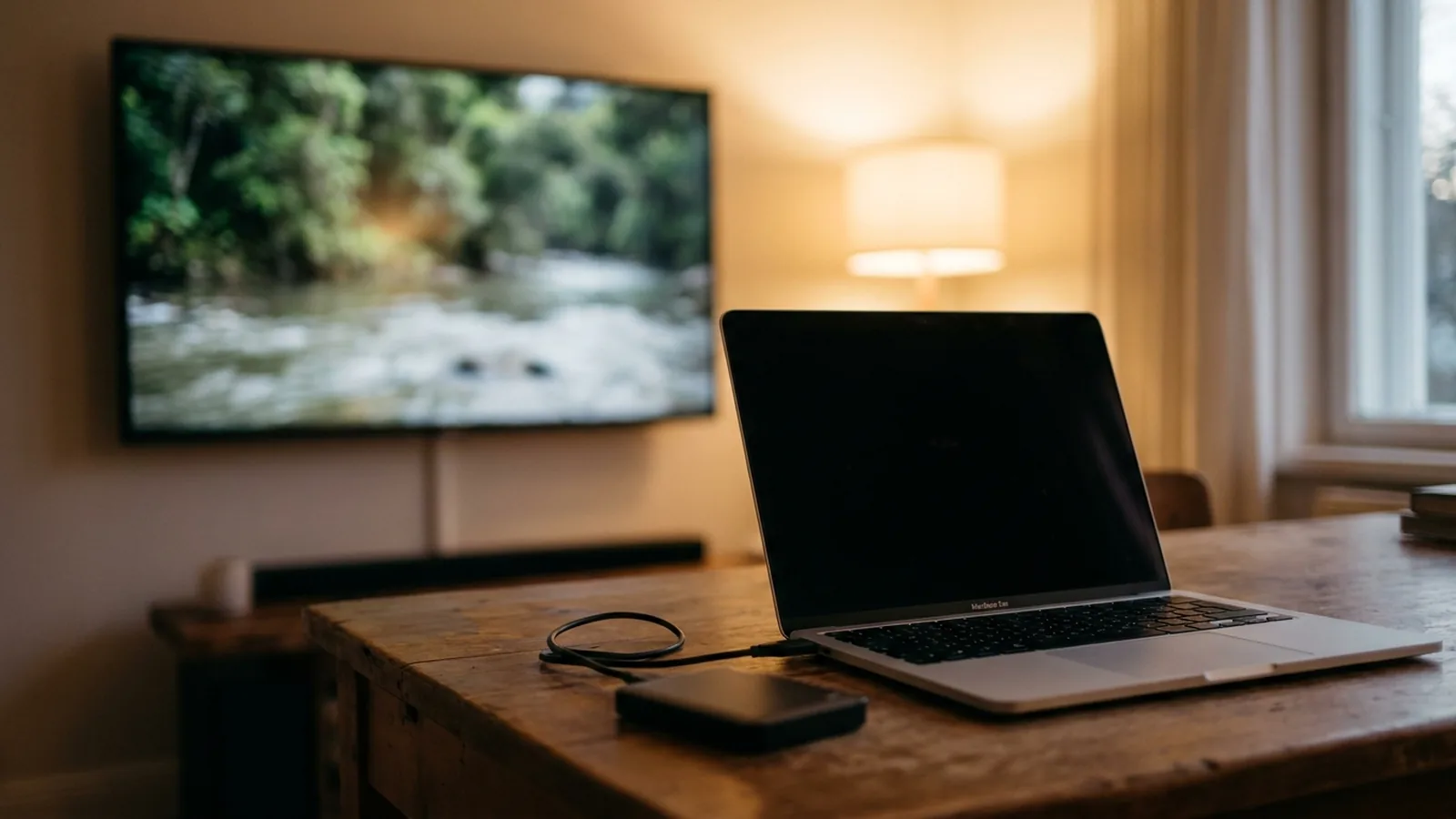
Add the videos to Fast TV from the external drive or mounted network share, exactly as you would from the Mac’s own disk. The TV plays them through the Mac, so the drive never has to be read by the TV itself. Keep the drive connected and awake while you watch; a disconnected drive shows its videos as File unavailable.
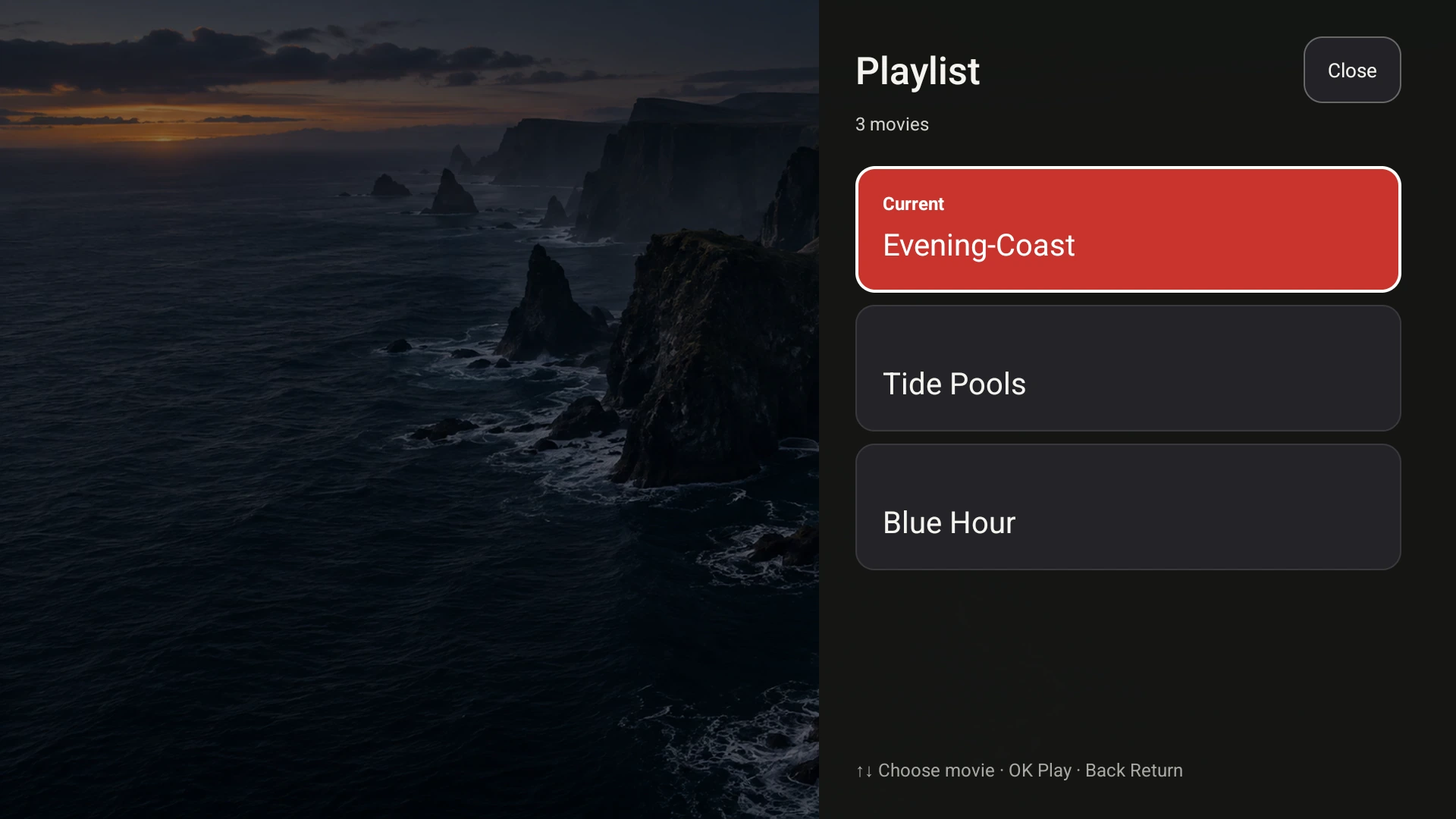
The playlist refers to files wherever they live on the Mac, including external drives. Demo videos shown.
Why plugging the drive into the TV often fails
Google TV and Android TV devices usually read exFAT drives only. A drive formatted on a Mac as APFS or HFS+ will not mount, NTFS is unsupported on several devices, and the TV’s single USB port may be busy supplying power. NAS shares are no easier: the TV’s apps need a media server such as Plex or a manually configured SMB connection, and both take setup. Fast TV avoids all of this by leaving the files where they are and streaming them from the Mac.
Adding videos from the drive
- Connect the drive to the Mac, or mount the NAS share in Finder as usual.
- Open Fast TV and click Add videos, or drag the files from the drive into the playlist. Fast TV stores a reference to each file’s location and does not copy it.
- Choose the TV and click Play on TV. The Mac reads the file from the drive and streams it over the local network.
Subtitle files beside the video on the drive are found in the same way. How subtitles are discovered.
If the drive is unplugged or asleep
When a drive is disconnected, its videos show File unavailable in the playlist. Reconnect the drive and select the row to retry, or remove the row and add the file again from its new location. The playlist itself survives: Fast TV restores the references when you reopen the app, so an occasionally connected drive works fine as long as it is present when you press play.
Some external disks spin down after a period without reads. Playback that stalls a few seconds into a file, or when skipping to a new chapter, can be the disk waking up. Check the drive’s own power settings or keep it awake while watching.
Speed matters more than you expect
The Mac has to read the file at the video’s bitrate before it can send it. A USB 3 SSD or hard disk is plenty. A NAS share mounted over Wi-Fi is the weak case: the file crosses the wireless network twice, once from the NAS to the Mac and once from the Mac to the TV. For high-bitrate 4K files that can be the bottleneck. Connect the Mac to the NAS over Ethernet, or copy the file to the Mac first. Stutter and buffering.
Permissions and encrypted drives
If macOS asks whether Fast TV may access files on a removable volume or network volume, allow it; otherwise the row shows the file as unavailable. Encrypted drives must be unlocked before Fast TV can read them. Files on cloud folders that are not downloaded to the Mac cannot be streamed until they are downloaded.
Questions
Do I need to reformat my drive to exFAT?
No. The drive is read by the Mac, so any format macOS can mount works, including APFS and HFS+.
Can the TV browse the whole drive?
No. The TV sees the playlist you build on the Mac, not folders. Add the videos you want to watch; a playlist holds up to 200 files.
Does Fast TV copy files from the drive to the Mac?
No. It stores references and streams directly. The only temporary copy is a compatible audio version prepared for Google Cast or unsupported audio, which is removed afterwards.
Related guides
Free to download. A one-time US$19.99 license streams from up to two Macs. Apple silicon with macOS 13 or later, and a Google TV or Android TV on the same local network.