 Fast TV
FAST TV GUIDE
Keep your Mac awake, or close the lid, while streaming to the TV
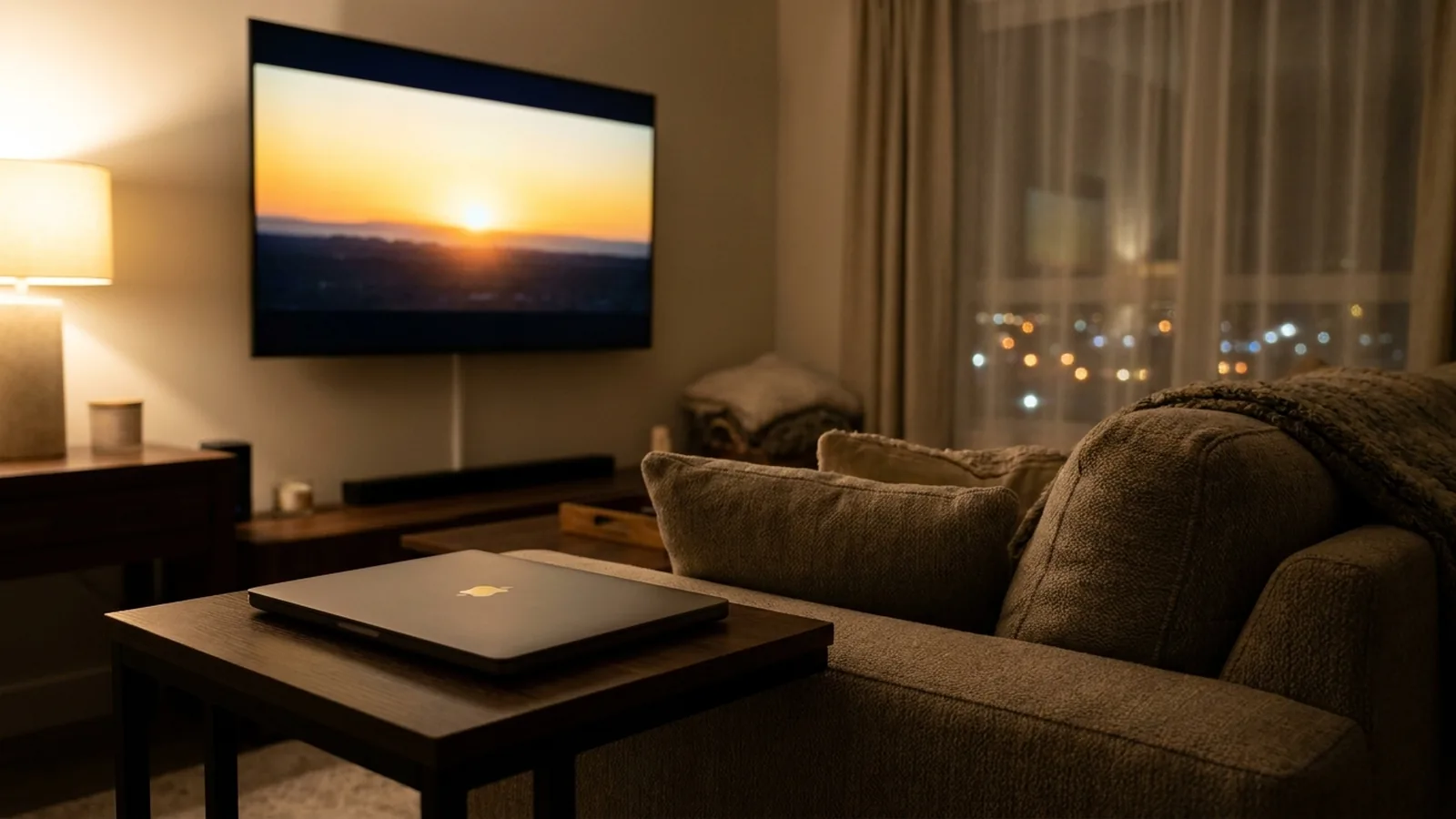
You do not need to change macOS sleep settings. Fast TV prevents idle sleep while a video is playing, connecting or being prepared, and lets the Mac sleep normally when you pause or stop. To stream with the lid closed, enable closed-lid playback in Playback power.
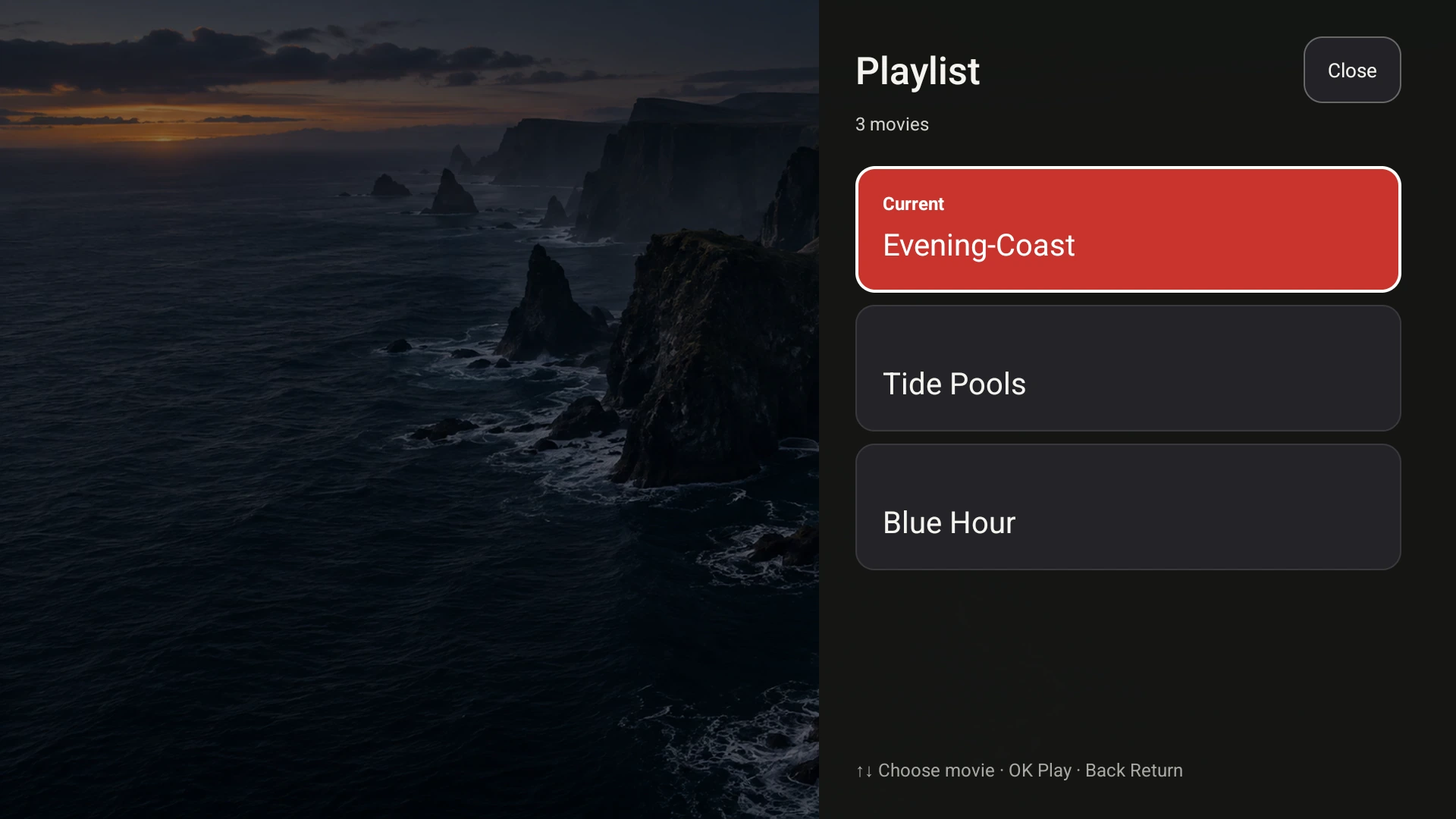
The Mac supplies the video for the whole session, so it has to stay awake while the TV plays. Demo videos shown.
What Fast TV does on its own
While a video is playing on the TV, being prepared, or a connection is being made, Fast TV holds a macOS sleep assertion so the Mac does not idle-sleep. The display may still turn off; only the system stays awake. When you pause, stop, disconnect or quit, the assertion is released and the Mac follows its normal sleep schedule. Closing the Fast TV window does not stop streaming.
You do not need caffeinate, a keep-awake app or a change in System Settings for an open Mac on power.
On battery
Fast TV pauses playback when the battery reaches 10% or below and releases its sleep protection. Connecting the charger makes playback available again; it does not resume the video by itself. The TV remote cannot bypass the cutoff. If another app is preventing sleep, Fast TV still pauses at 10% but cannot undo that app’s setting.
Streaming with the lid closed
By default a MacBook sleeps when the lid closes, which ends the stream. Fast TV offers optional closed-lid playback through a signed helper that holds a short, renewable lease while a video plays and restores normal sleep afterwards, even if the app crashes.
- Install the notarized Fast TV app in Applications.
- Open Playback power from the footer of the Fast TV window or from the Fast TV menu.
- Choose Enable beside Closed-lid playback, then approve Fast TV in System Settings under General and Login Items & Extensions. macOS may ask for an administrator name and password; Fast TV does not store it.
- Start a video. The status reads Mac awake · lid can close once the lease is active.
Mac awake on its own means ordinary sleep prevention, not closed-lid protection. Choose Turn off in Playback power to restore sleep and unregister the helper.
Limits worth knowing
- Closed-lid playback needs a Mac with a battery, and it keeps the same 10% battery cutoff.
- The helper checks the battery every second; if the battery level cannot be read, Fast TV releases its protection rather than guessing.
- Sleep overrides owned by other apps are reported but not changed.
- The helper does not force an open Mac to sleep or close other applications.
If the Mac still slept
Check that a video was actually playing: a paused video lets the Mac sleep by design. If the lid was closed without closed-lid playback enabled, the Mac slept normally. If the status mentioned a low battery, the 10% rule paused playback. After waking the Mac, choose the TV and press Play on TV again.
Questions
Does the Mac’s screen need to stay on?
No. Fast TV only prevents system sleep. The display can turn off or dim as usual.
Can I use the Mac for other things while a video plays?
Yes. Streaming runs in the background. Heavy disk or network work on the Mac can compete with a high-bitrate stream.
Why does Fast TV ask for approval in System Settings?
Closed-lid playback uses a helper that must be approved as a login item and extension by the Mac’s owner. That approval is what lets the helper hold and release the sleep setting safely.
Related guides
Free to download. A one-time US$19.99 license streams from up to two Macs. Apple silicon with macOS 13 or later, and a Google TV or Android TV on the same local network.